
Guide
A five-minute tour of how to use Numero.
Connect an inbox, read the Briefing, keep the noise out, ask questions, and teach Numero when it needs correcting. That is the whole loop.
01
Step 1
Connect the inboxes that already receive your receipts.
Numero reads only what you authorize. Connect Gmail and Outlook — including multiple accounts on the same login — so every receipt, invoice, subscription notice, and travel confirmation lands in one Financial Memory.
- Open Settings, then Integrations, then choose Connect Gmail or Connect Outlook.
- You can add more than one account — a personal Gmail plus a work Outlook, or two Gmail accounts.
- Numero only requests read-only access. You can disconnect any inbox at any time from the same screen.
02
Step 2
Read the Briefing to see what actually deserves attention.
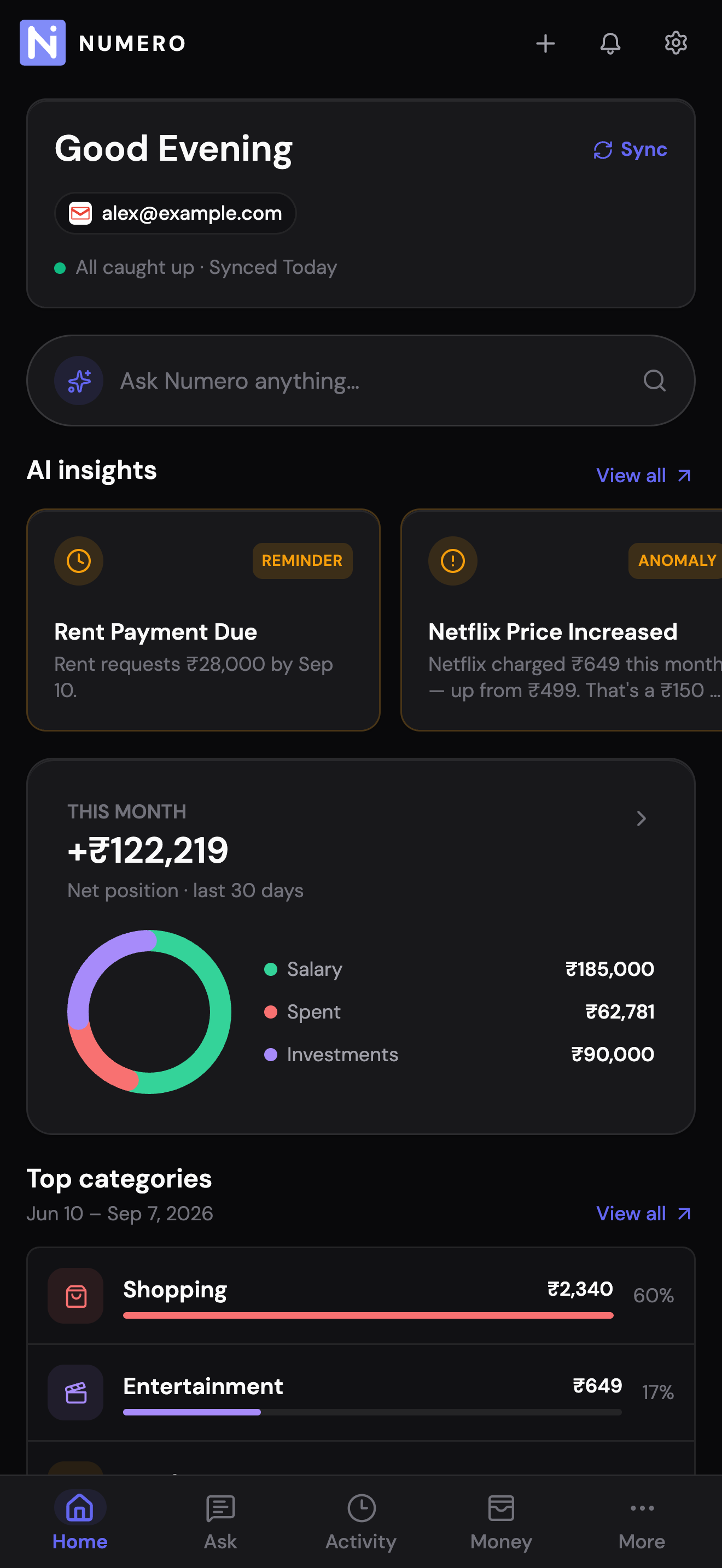
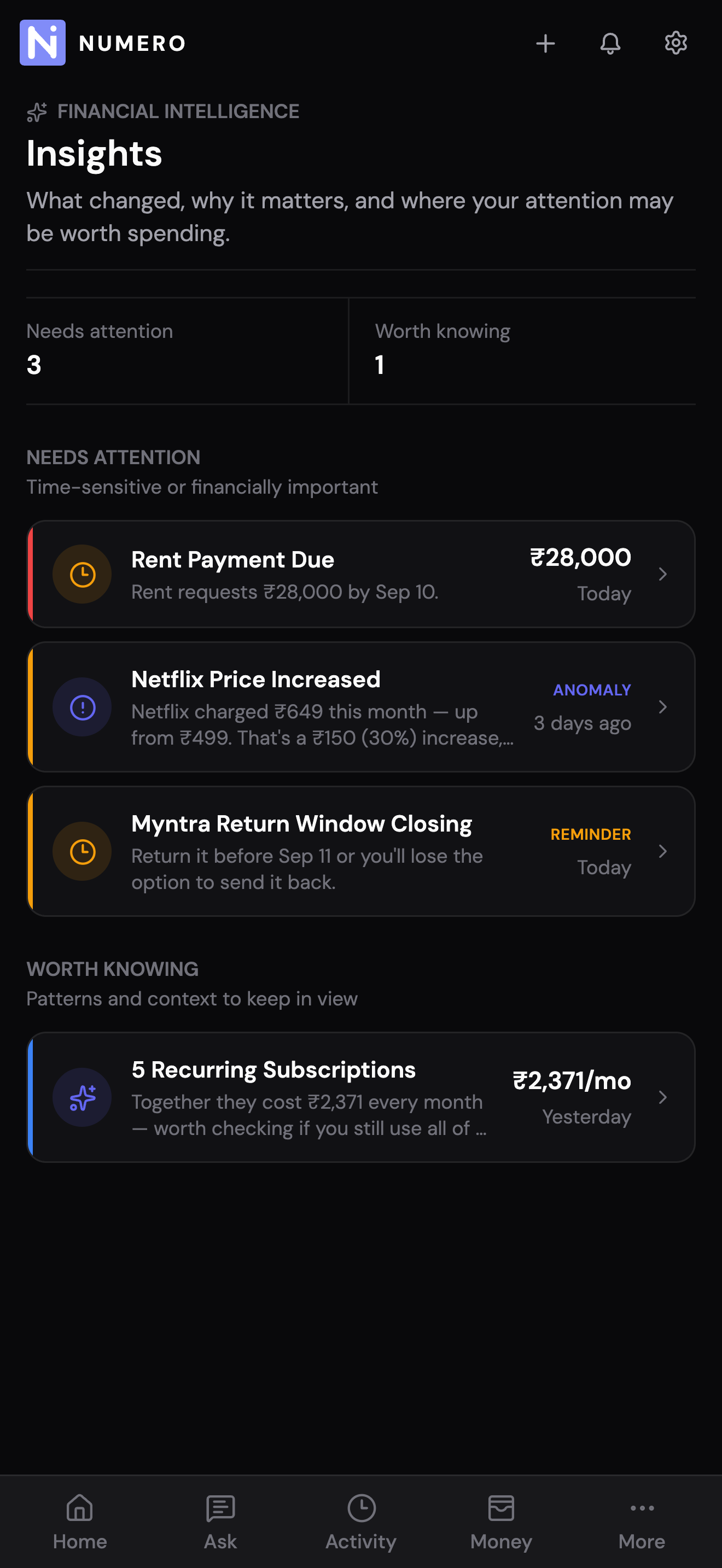
The Briefing shows a curated set of Financial Moments — renewals about to charge, refunds still pending, bills due, anomalies to review. Each one links to the underlying evidence so you can confirm before acting.
- Open the Dashboard to see today's Briefing at the top.
- Each Moment includes the source email, the extracted fact, and Numero's confidence.
- Click Explore on any Moment to open the full Activity drawer with the timeline of related messages.
03
Step 3
Exclude the ones that are not really financial.
Marketing emails, calendar invites, and OTP messages sometimes slip through. Excluding an event tells Numero this is not a real transaction — it disappears from Briefing, Timeline, and totals, and Numero learns from it so similar messages get filtered next time.
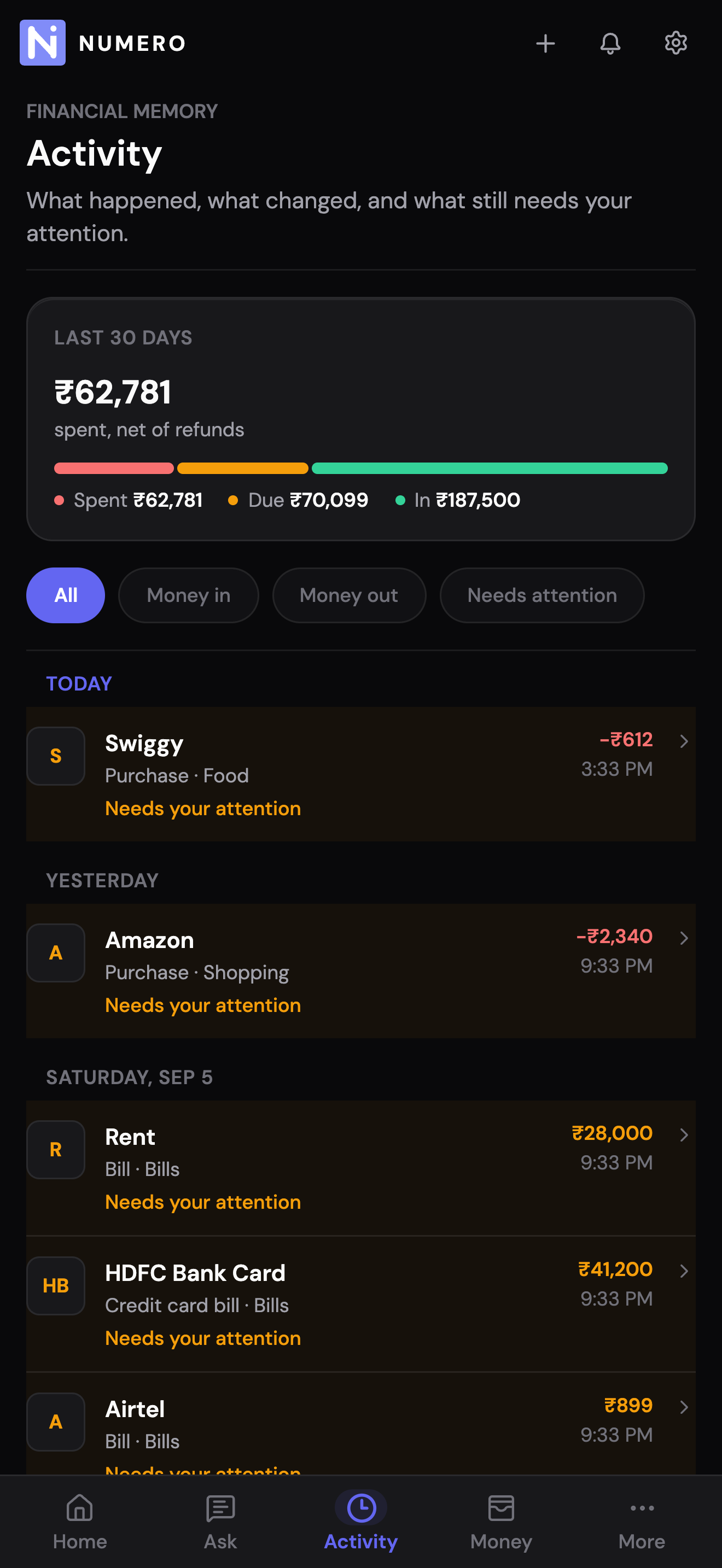
- Open the Activity from Timeline or Search.
- Use the overflow menu in the header and choose Exclude — pick the reason (not financial, duplicate, or wrong merchant).
- Excluded events are still visible under Excluded so you can undo the decision later.
04
Step 4
Ask Numero questions in plain language.
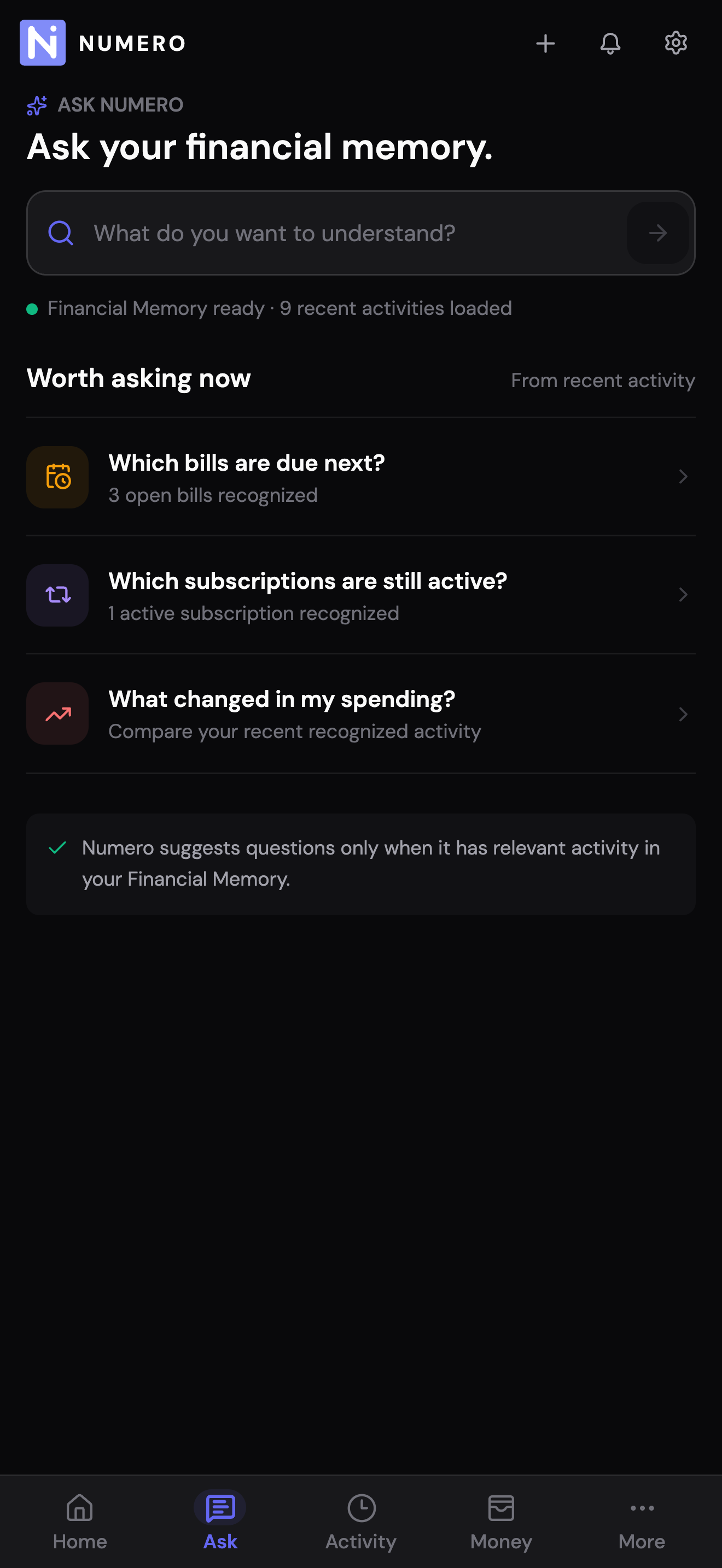
Ask Numero is a natural-language search over your Financial Memory. It answers with evidence — the specific Activities, Movements, and source messages that support each fact — so answers are never made up.
- Open Ask Numero from the sidebar or press ⌘K.
- Ask specific questions like "what refunds are still pending?" or "show me every Cloudflare bill this year".
- Every answer includes the source Activities and messages Numero used — click through to verify.
05
Step 5
Correct merchant and category when Numero gets it wrong.
Numero learns from every correction. If a Stripe receipt is really a Railway subscription, or a purchase should sit under Cloud instead of Shopping, updating it once fixes future events from the same sender.
- Open any Activity and click Edit next to the merchant name or category.
- Corrections apply immediately to that Activity and are learned into Numero's merchant knowledge for future syncs.
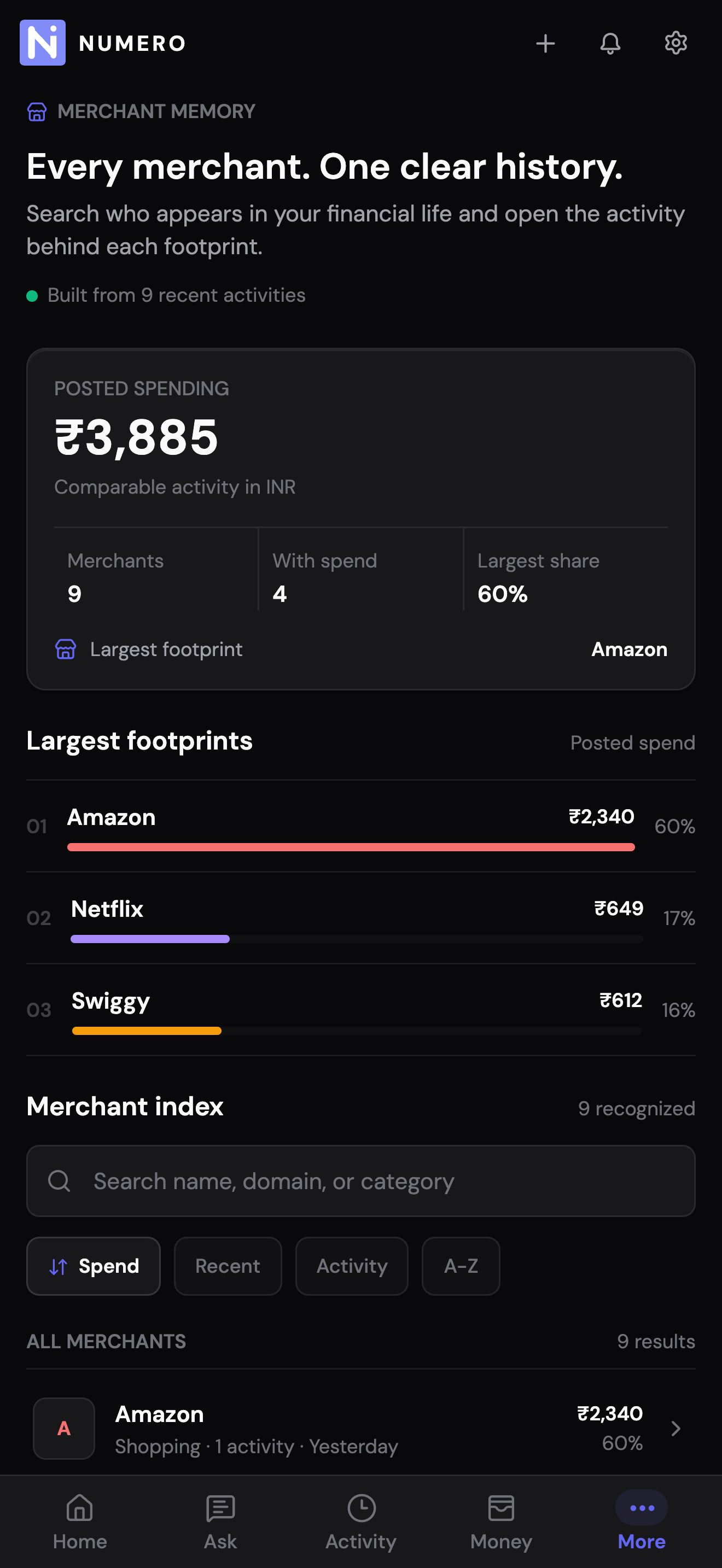
- You can also promote an unresolved merchant alias into Merchant Knowledge from the Merchant page.
Next
That is the whole loop. The rest is Numero doing its job.
Every correction teaches the pipeline. Every excluded event narrows the noise. The more you use Numero, the quieter and more useful the Briefing becomes.